Microsoft Teams
Configure Routing
Explains Microsoft Teams routing for incoming messages. Useful for directing chat, team, and default routes into the right Stubber workflows.
Overview
Routing configuration determines how incoming Microsoft Teams messages are processed and directed to the appropriate templates within your Stubber application. Messages are routed based on their source and any custom configurations you set up.
Routing Types
There are 3 types of routing configurations available:
Default Routing
- Purpose: Handles all messages from chats or teams that don't have custom routing configured
- Scope: Acts as a fallback for any conversation without specific routing rules
- Configuration: Always active and processes unmatched conversations
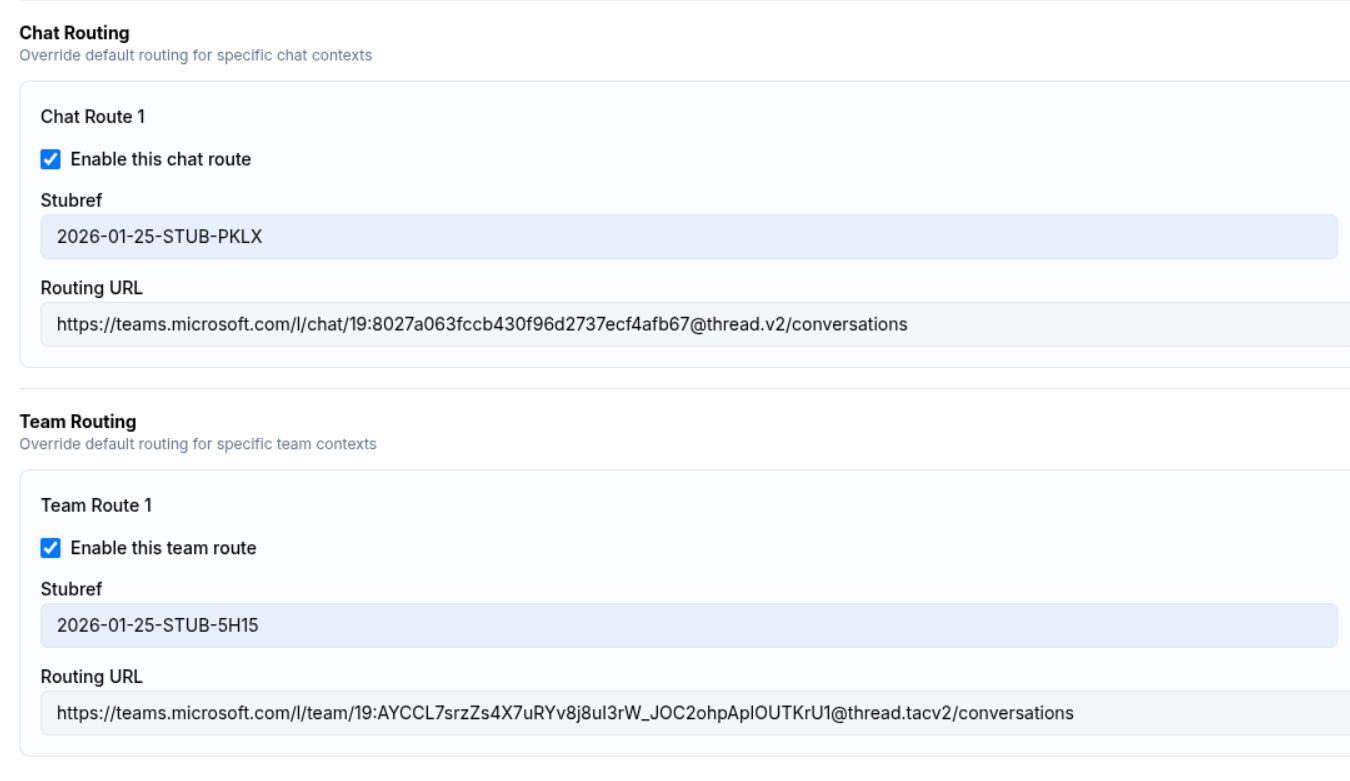
Chat Routing
- Purpose: Routes messages from specific group chats
- Configuration: Based on the link to a specific group chat
- Use Case: When you want different behavior for specific group conversations
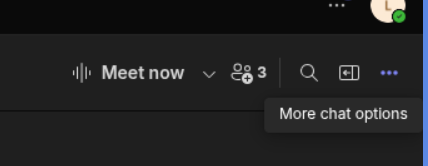
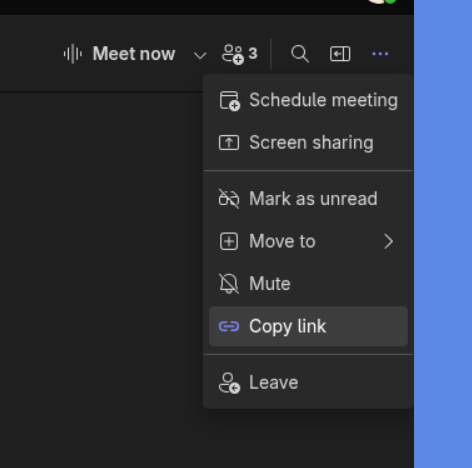
Getting the Chat URL
To route messages from a specific group chat, you need to obtain the chat URL:
Team Routing
- Purpose: Routes messages from specific Microsoft Teams
- Configuration: Based on the link to a specific team
- Use Case: When you want different behavior for specific team conversations
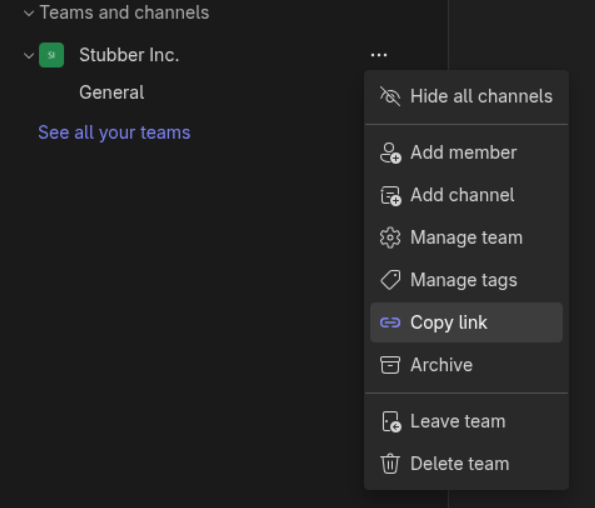
Getting the Team URL
To route messages from a specific team, you need to obtain the team URL:
Setting Up Routes
Adding URLs to Your Profile
Once you have the chat or team URL, add it to your Microsoft Teams profile configuration: