Microsoft Teams
Installing Bot to Teams
Explains installing the Stubber app manifest in Microsoft Teams. Useful for enabling bot access, Teams messages, and organizational deployment.
Overview
To use your Microsoft Teams integration with Stubber, you need to upload and install the Stubber app manifest to Microsoft Teams. This guide covers the process of uploading the Stubber app manifest regardless of whether you're using Stubber's managed bot or your own custom bot.
What is an App Manifest?
The Stubber app manifest is a JSON file that defines your bot's capabilities, permissions, and configuration within Microsoft Teams. It tells Teams how to interact with your Stubber-powered bot and what features it supports.
Downloading the Stubber App Manifest
Before uploading to Teams, you need to download the Stubber app manifest from your Stubber profile:
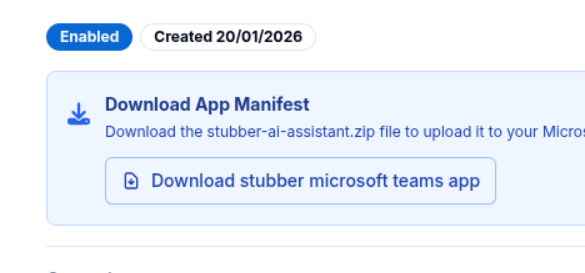
// TODO: Add instructions for downloading the app manifest from Stubber
Uploading App Manifest to Teams
Prerequisites
- Downloaded Stubber app manifest from your profile (see above)
- Microsoft Teams admin permissions
- Access to Microsoft Teams Admin Center
Upload Process
Navigate to the Microsoft Teams Admin Center at https://admin.teams.microsoft.com/policies/manage-apps to upload the Stubber app manifest.
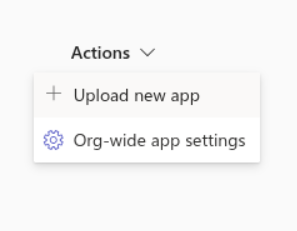
Step 1: Access Upload App Section
Start the app upload process in the Teams Admin Center:
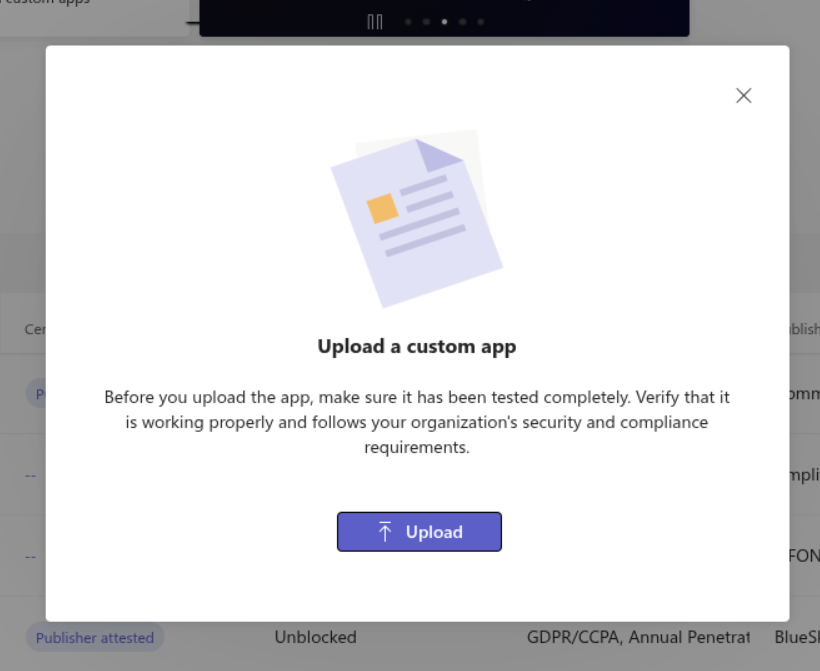
Step 2: Select Your App Manifest
Choose the Stubber app manifest file you downloaded from your profile:
Step 3: Review and Submit
Review the app details and submit for upload:

Upload Result
After successful upload, you'll see confirmation of your app being added:
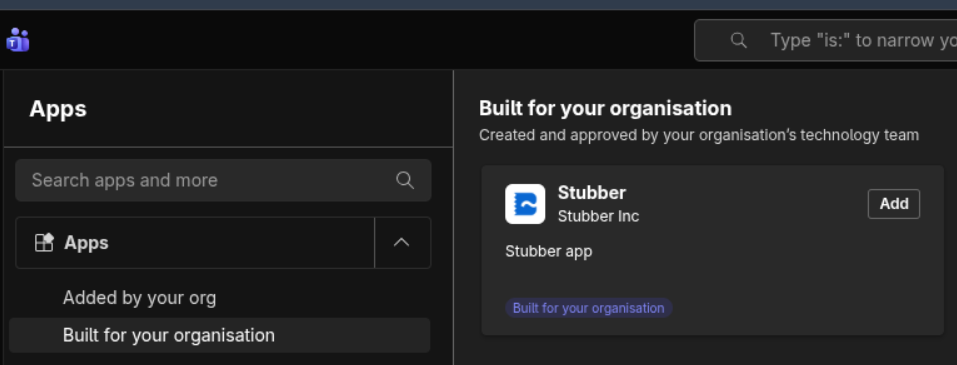
Installing the Bot
Opening the App in Teams
Once uploaded, you can open and install the app in Microsoft Teams:
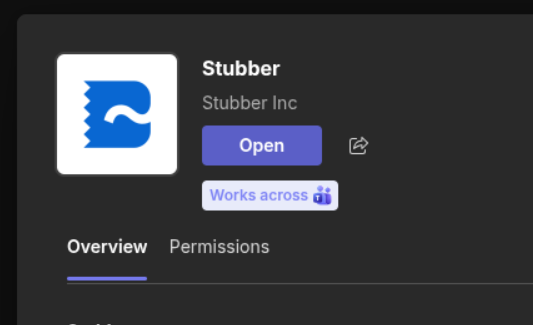
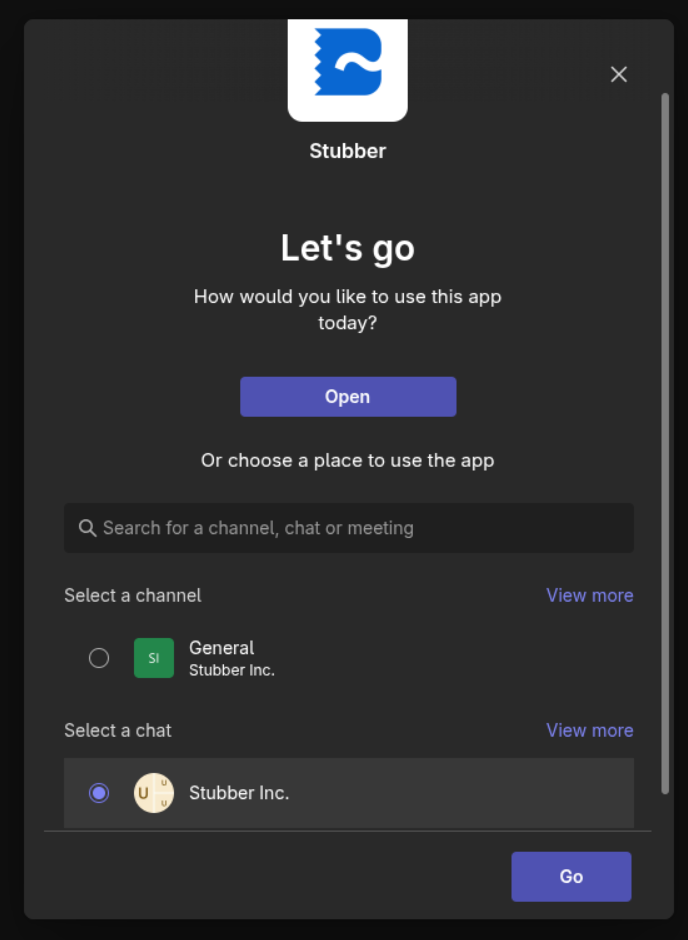
Team or Channel Installation
When installing the bot to a team or channel, select the appropriate location:
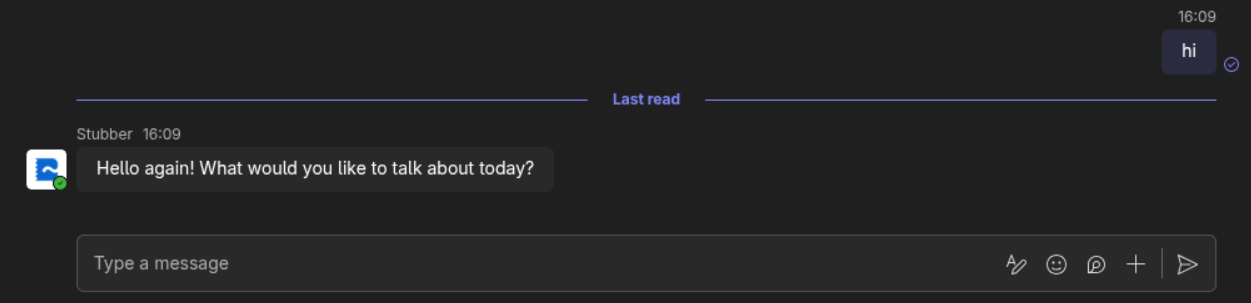
Using Your Bot
Direct Messaging with Bot
Once installed, you can chat directly with your bot:
Team and Group Conversations
Your bot can also participate in team and group conversations: