Platform
Builder
Explains Builder as the workspace for creating and managing templates, contexts, flows, layouts, Knowledge Library content, and PDF templates.
Navigating to Builder
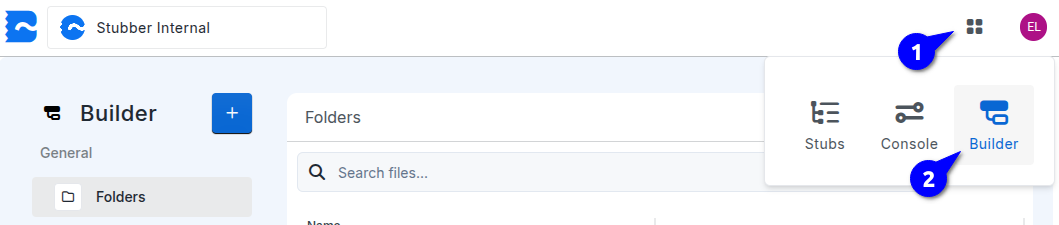
- Click on the four Dots at the top right
- Select the Builder option.
- This will open the Template List view.
Sections
This is the default page you will see when navigating to the Builder from the Four Dots menu.
It lists all of the templates in your org and allows you to create, edit, and delete them.
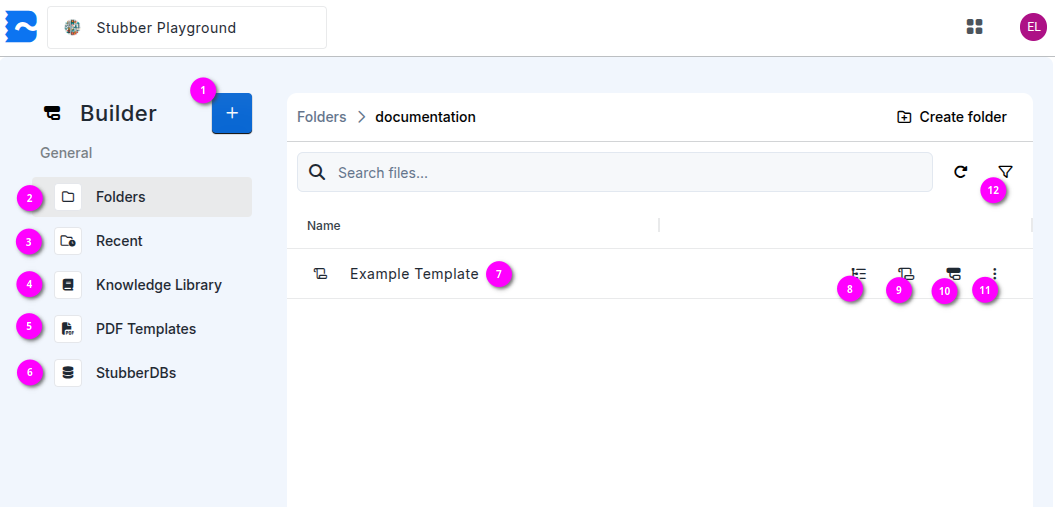
1. Create button
Allows creation of new editor templates and other resources.
- Create new template
- Create new article
- Create new folder
- Allows you to organize your templates and articles into folders.
2. Folders view
This is the default view selection for the Editor home page. It allows you to view all of your templates and articles in a folder based structure.
3. Recent view
This view allows you to see your most recently edited templates.
4. Knowledge Library view
This view allows you to see knowledge library articles sorted into libraries, rooms, and shelves.
5. PDF Templates
Opens a PDF Template selection to allow for editing and viewing of created PDF Templates.
7. A template or article
Clicking on a template or article will open the editor for that resource.
For templates, clicking on the line itself will open the template overview page in-place.
8. Open Stub List
Clicking this button will open the stub list page for the template in a new tab.
9. Open Template Overview
Clicking this button will open the template overview page in a new tab.
10. Open Default Flow
Clicking this button will open the default flow for the template in a new tab.
11. Three Dots / More Options
Clicking this button will open a menu with additional options for the template or article.
- Archive
- Archives the template or article, similar to a deletion.
- Move
- Moves the template or article to a different folder.
- Copy
- Creates a new template or article from an existing one.
- Edit
- Allows updating the name and description of the template or article.
- Copy templateuuid
- Copies the template's UUID to the clipboard.
12. Filter
Allows you to apply categorical filtering to the list of shown templates.
- System templates
- Shows only system templates. See System Templates.
- Archived
- Shows only archived templates.
- Articles
- Include articles in the list.
- Templates
- Include templates in the list.
- Folders
- Include folders in the list.