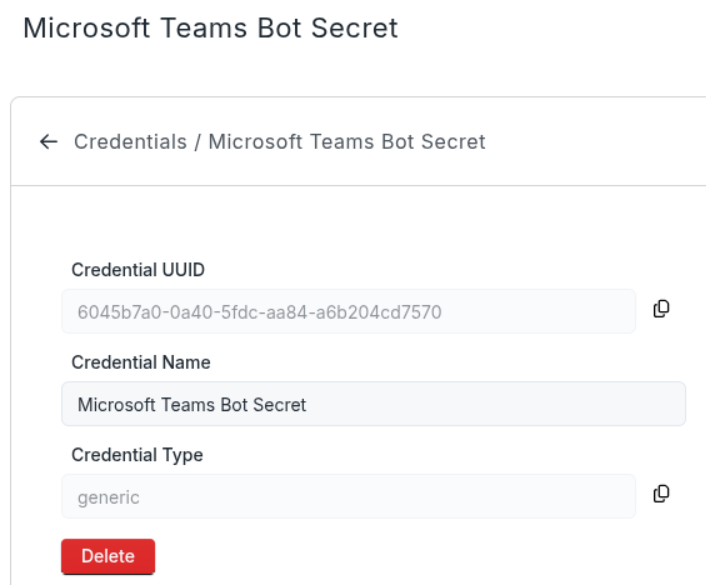
Microsoft Teams
Create Profile
Explains Microsoft Teams profile and credential setup. Useful for connecting Stubber to Teams through the Stubber bot or a custom Teams bot.
Overview
To send notifications through Microsoft Teams, you first need to create a Teams profile in Stubber. This profile contains the necessary credentials and configuration to connect with Microsoft Teams services.
Requirements
Both bot configuration options require your Microsoft Teams Tenant ID for setup and authentication.
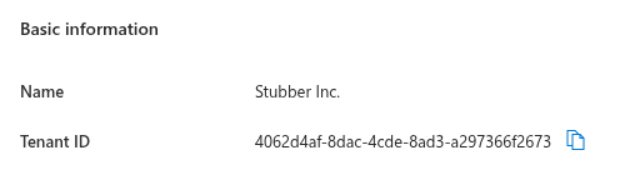
Finding Your Tenant ID
You can find your Microsoft Teams Tenant ID in the Azure portal at https://entra.microsoft.com/#view/Microsoft_AAD_IAM/TenantOverview.ReactView:
Profile Configuration Options
When creating a Microsoft Teams profile, you have one profile type with two configuration options controlled by a toggle:
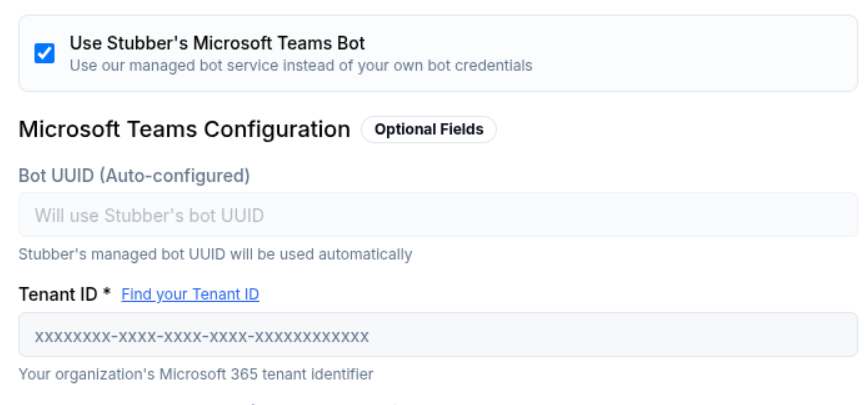
Use Stubber's Bot (Recommended)
When the "Use Stubber's Bot" toggle is enabled:
- Uses Stubber's pre-configured Microsoft Teams bot
- No additional bot setup required
- Faster to get started
- Managed by Stubber platform
- Requires your Tenant ID for configuration
// TODO: Add Stubber's bot setup instructions
Use Your Own Teams Bot
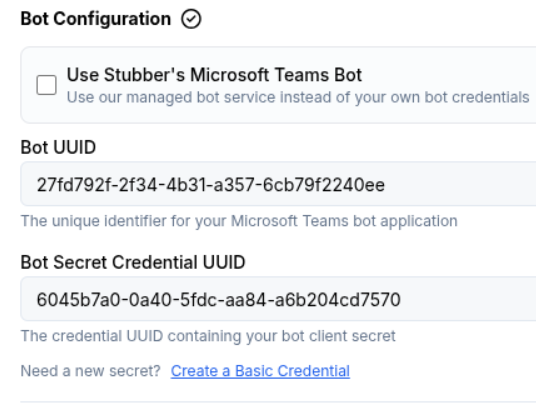
When the "Use Stubber's Bot" toggle is disabled:
- Uses your own Microsoft Teams bot
- Requires additional configuration
- More control over bot settings
- Requires the following credentials:
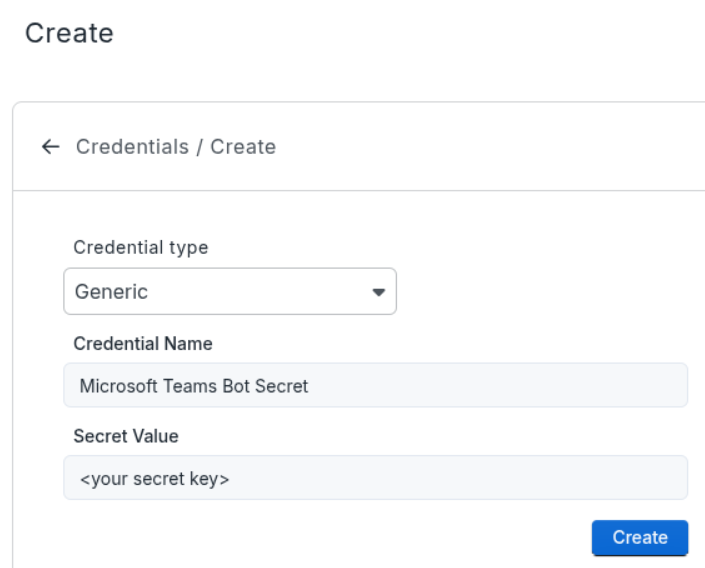
- Bot Secret: Your Teams bot application secret
- Bot UUID: Your Teams bot application ID (Application Client ID)
Creating Bot Credentials
To use your own Teams bot, you need to create credentials in Azure:
Creating a Client Secret
Create a new client secret for your bot application:
Getting Your Bot UUID (Application Client ID)
Find your Teams bot Application Client ID:
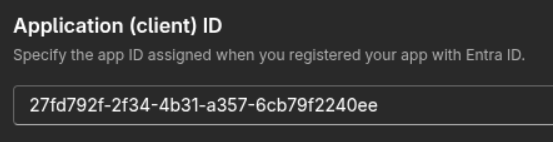
Using the Bot UUID
Copy and use the Bot UUID in your Stubber profile: