Notifications
Slack
Explains Slack notifications from Stubber. Useful for sending messages to users or channels, routing replies, and connecting Slack contact points..
The Stubber Slack bot can do the following:
- Message any user in a workspace
- Message any channel that is public
- Message private channels (the bot has to be manually added to the channel by an admin)
Adding a Slack notification profile
Before you'll be able to send and receive Slack notifications, you'll need to create a Slack notification profile.
Navigate to Manage to connect your Slack workspace to Stubber.
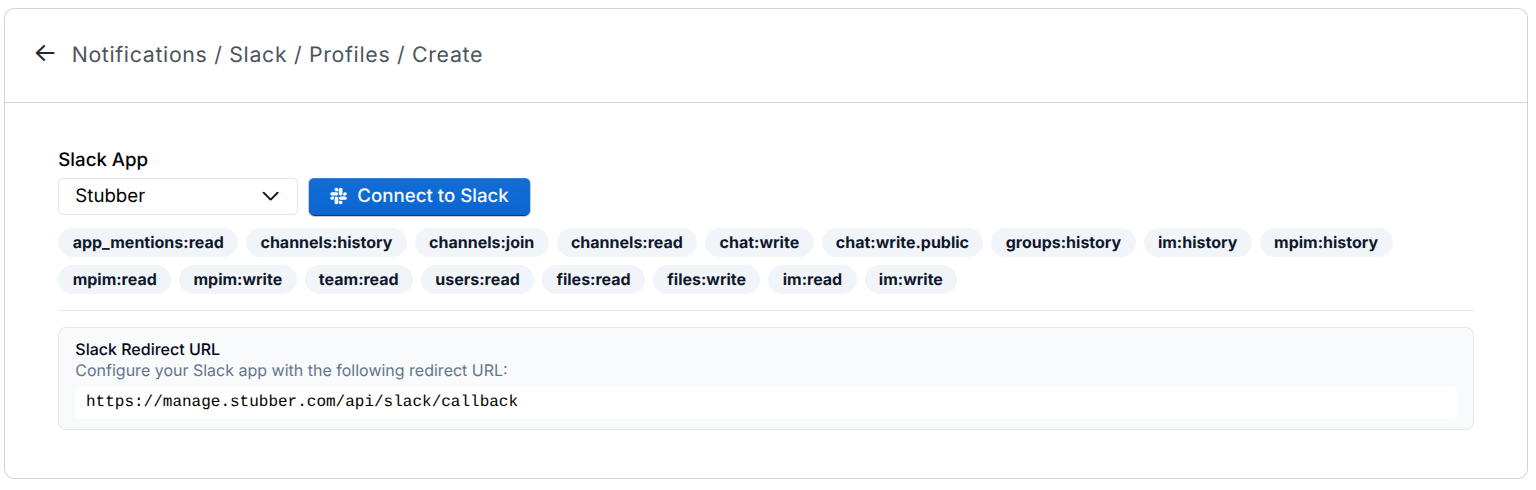
Pick the Slack app you'd like to connect, you can use the default Stubber app or create your own Slack app. Click Connect to Slack to continue.
You will be presented the Slack authorization screen, where you can select the workspace and authorize the app.
If successful, you'll be redirected back to your newly created Slack notification profile on Stubber.
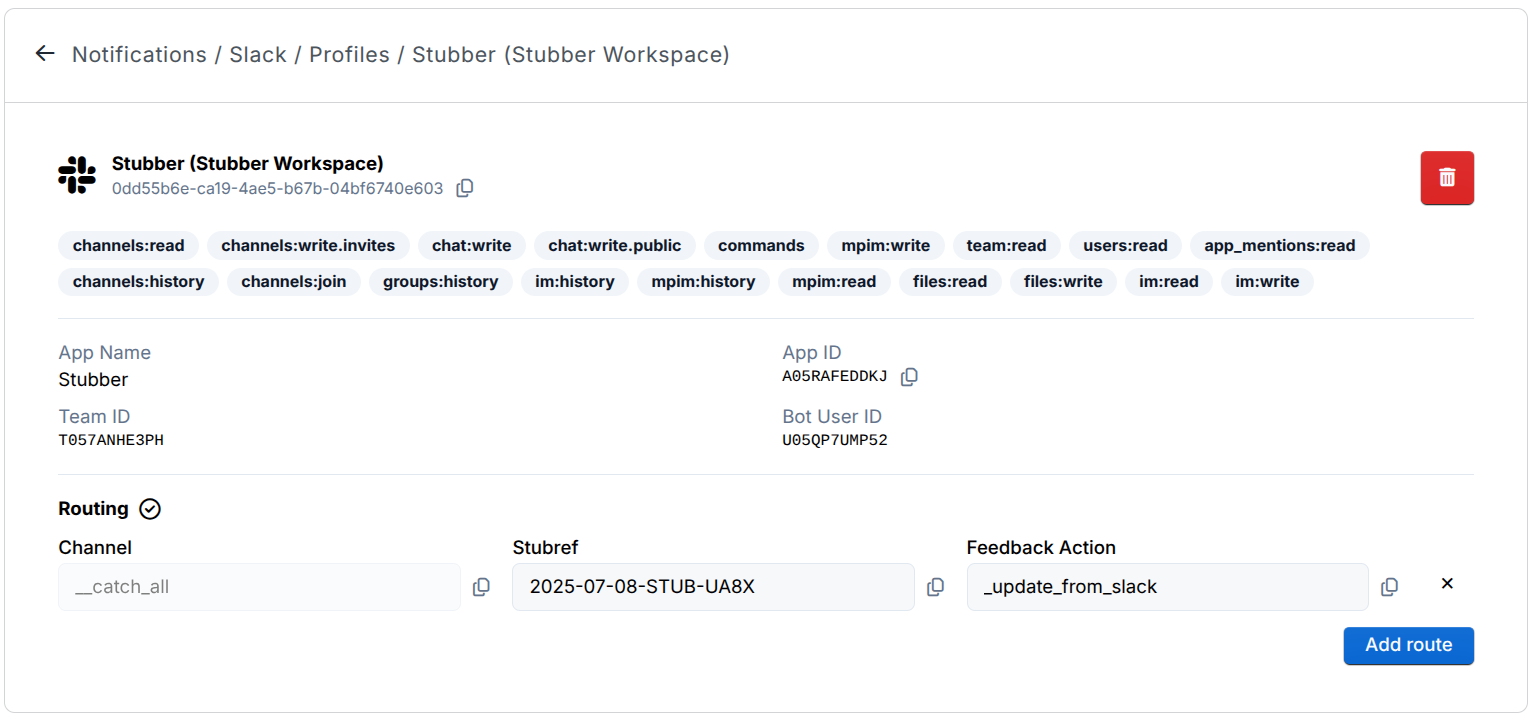
Message Routing
When a new message is posted in a Slack channel, there are a few mechanisms that determine which stub the message is sent/routed to.
- Thread Reply Routing
- If the message is a reply to another Slack message, the message will be sent to the same stub as the parent message, if found.
- Stub Session Routing
- If a stubsession was set when an outgoing message was sent (see below), and the session is still active, the incoming message will be sent to the stub that created the session.
- Profile Channel Routing
- On the Slack notification profile, you can configure several channel<->stubref mappings. If the incoming message is from one of these channels, the message will be sent to the mapped stub.
- A special channel mapping of
__catch_allcan be used to route all unmatched messages to a specific stub.
Stubsessions
A stubsession is a temporary link between a Slack channel (DMs and channels) and a specific stub.
When a stubsession is active, all incoming messages from that channel will be routed to the stub that created the session.
A stubsession is created by including the stubsession object when sending a Slack message, as shown in the examples below.
The set_new_with_timeout_hours parameter specifies the duration of the session in hours.
If the stubsession object is not included when sending a message, no session will be created.
If the set_new_with_timeout_hours parameter is set to 0, the session will last indefinitely until manually cleared.
If you'd like a different feedback action to be triggered when a stubsession message is received, you can specify the stubsession.set_feedback_action parameter with the name of the feedback action to trigger.
Default is _update_from_slack.
Slack Contact Points
Messages can be sent directly to Slack channels, or to Stubber contacts.
Contacts will need to have a Slack contact point configured, as shown below.
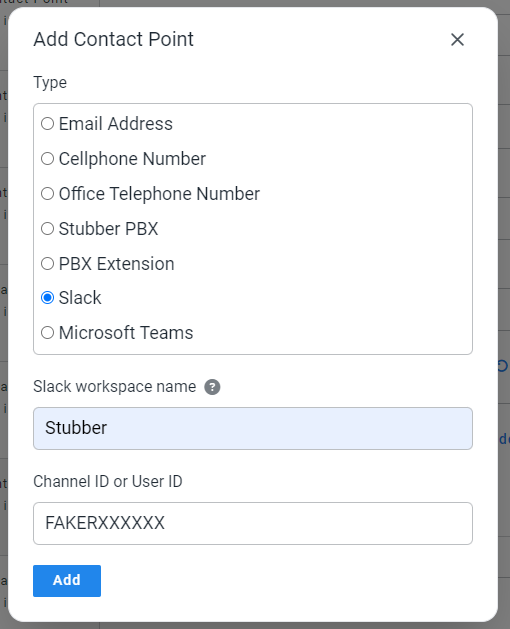
The Workspace/Team ID is the unique identifier of your Slack workspace, and can be found in the Slack workspace settings but is also shown on the notification profile page after connecting your Slack workspace.
The Slack contact point requires the Workspace/Team ID and either a User ID or Channel ID.
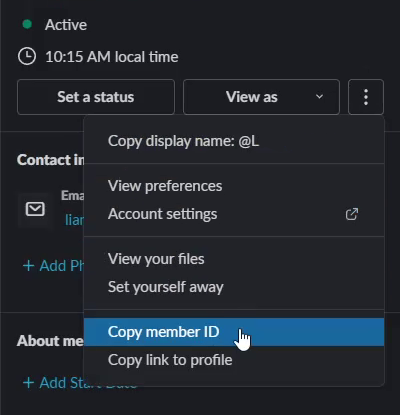
Find a User ID
User ID
- Navigate to a users profile
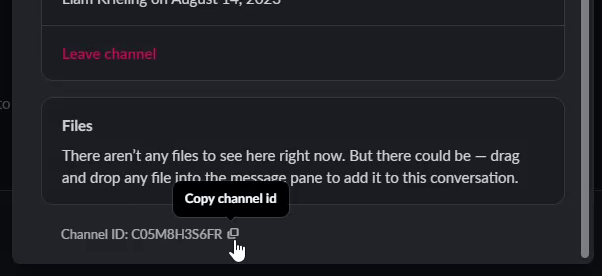
Find a channel ID
Channel ID
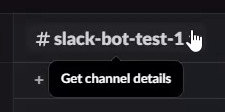
- Navigate to a channel and go to its settings
Sending a Slack message using a contactuuid
Sending a Slack message using a raw Channel or User ID
The Team ID embedded in the profile linked by the profileuuid will be used.
Sending a Slack message to a channel (simple)
You can also specify the target channel directly in the Slack message, as well as other message parameters.
See the Slack API documentation for all available parameters.
For example, you can use blocks to create rich message layouts.
Sending a Slack message with blocks
You can use Slack's Block Kit to build rich, interactive messages by including a blocks array on the message object. Blocks are passed through to Slack unchanged, so any valid Block Kit JSON works, and text fields inside blocks can still use interpolation strings such as ~~stubpost.message.
When a button is clicked, the actions from the interaction will be present in stubpost.data._incoming_slack_data, shaped like this:
actions is always an array — Slack can report multiple actions in a single payload — so index into it (e.g. ~~_incoming_slack_data.actions[0].action_id) rather than treating it as a single object.
Interactions are routed back to a stub the same way incoming messages are (see Message Routing above)