Editor
StubberDB
Exploring databases and managing schema migrations in the Editor.
Overview
StubberDBs allow you to connect to and interact with your databases directly from the Editor.
You can explore tables, inspect data, and manage your database schema through migrations.
Accessing StubberDBs
Navigate to the Editor and select StubberDBs from the left sidebar.
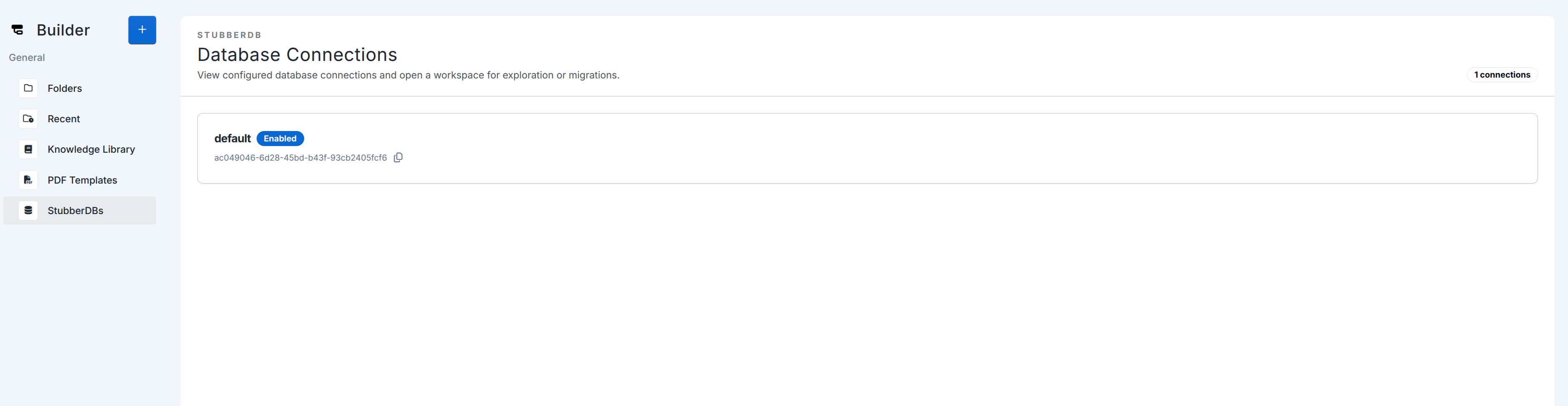
This will display a list of your connected databases.
Select a database to begin working with it.
Exploring a Database
Once a database is selected, you will be taken to the Explore view.
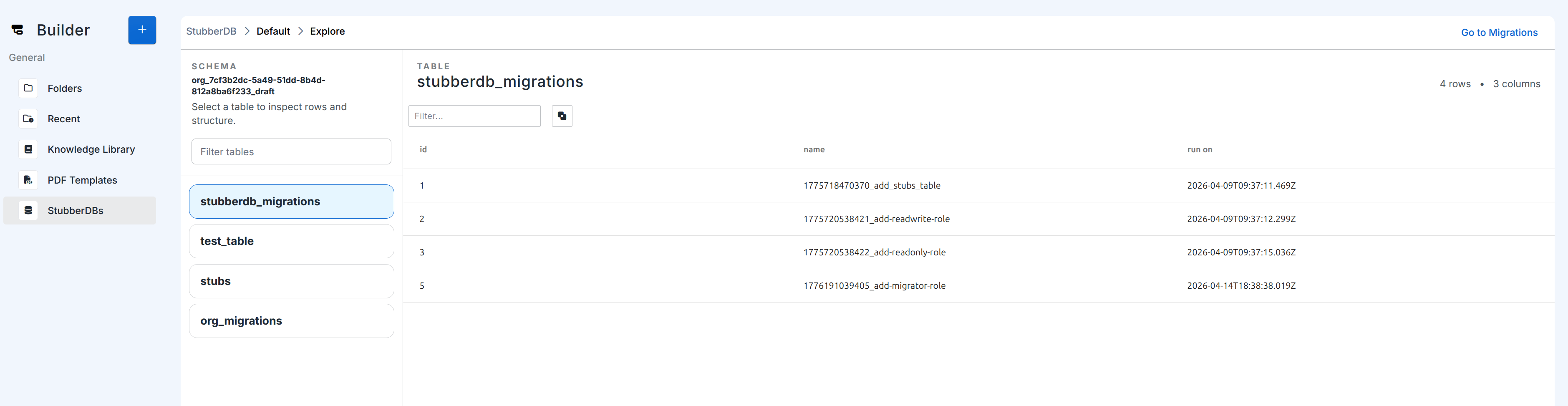
In this view, you can:
- See a list of available tables in the database
- Select a table to inspect its structure and rows
Clicking on a table will display its data, allowing you to quickly view and verify the contents of your database.
Managing Migrations
StubberDBs include a Migrations view for managing your database schema.
From this view, you can:
- View existing migrations
- Create a new migration
- Write SQL migration scripts
- Apply migrations to update the database schema
Creating a Migration
- Navigate to the Migrations view
- Click Add migration
- Enter your SQL migration script
Applying a Migration
Once your migration script is ready:
- Click Apply Migrations
- The script will be executed against your database
- Any schema changes defined in the script will be applied
- Migrations must first be applied to the
draftbranch, thereafter they can also be applied to thelivebranch
Notes
- Migrations are applied in order and tracked within the database
- Ensure your SQL scripts are correct before applying, as changes will directly affect your database schema